Wednesday, November 14, 2018

LastPass Review for Beginners: The #1 Password Manager
Are you facing problem with remembering different passwords for the different website? Or are you solving that problem with an old step setting the same password for every website?

Well. The new version of that old step has come to let you be tension free of remembering different passwords for different websites. That is LastPass.


review of lastpass


You have to set only a Master keyword and that password will secure all the other passwords. So, why being late? Let's discover this Password manager.

Why Using a Secure Password Manager is Important?

In this modern era, with the welfare of the web developer, risk of cyber threat is also increasing at a suspicious rate. In your device, you may connect yourself with the different server with the different Passwords and ID. To minimize the risk of cyber threat, you should use different passwords.

So, what is the next? Do you want to remember all these different passwords or to remember only a single password that will protect all the other different password?

What do you prefer most? Obviously, the second one- remembering the single password. Yes, that's a password manager do. A password manager will secure your every single necessary password in your device. LastPass do this with a guarantee and render some other special function too.

LastPass App: An Overview

Simply to say, LastPass works as a volt that stores your password and ensures safety. It will manage all your password for free. LastPass free version is available for anyone.

Also, it has the premium version. You can also use a web extension for Chrome, Microsoft Edge, Opera, Firefox, and Safari. But with the premium version, you can save sensitive data also like your bank account information.

LastPass works with a master password and with that password you can save all the different passwords. One of their recent advantages is that you can also share your password with anyone without revealing the password so that the person can access but won't be able to know the password.

>>>>> Apple iOS user can Get solution for iCloud security Code Problem.


Whatever, it is so popular among the people. It has been rewarded as Editors choice by PC Magazine in 2009. A report came in 2017 and in that report Lastpass was one of the four popular password managers.

What Are the Benefits you will get?

It is normal to have the curiosity to know how you will get benefit from a service. Let's have a look at them.
  • It will generate passwords. 
  • It will work as a volt for your each and every password. 
  • It will also save your sensitive data. 
  • It will let you share your password with anyone without revealing the password. 
  • Automatic form filling service is also available. 
  • You will have to remember only the master password. 
  • LastPass provides two-step identification. 
  • Provides a detailed report about each and every password which has been saved. 
  • It will also help you to increase the strength of your password by giving you hint. 
  • It can test and will tell you about the strength of your password. 
  • LastPass will also inform you to change your master password if something happens wrong. 
>>>>>>> Want to know more of alternatives Password manager Like Lastpass?

How to Use LastPass?


Are you thinking about how to use LastPass? Are you facing problems? Don't worry we have included here a brief explanation of bite-size chunks. Let's have a look at the step-by-step process.

Download LastPass in your browser
At first, you have to download the LastPass as an extension to your preferred browser. You will find the free version easily for LastPass download.

Install in your browser

Now, install by simply following the provided instructions by LastPass. After installing the LastPass, allow it to add an add-on to your browser.

Create an account

Now, create a LastPass account. Give your email address and a strong master password for LastPass sign in. Remember that password will protect your other passwords.

Save the password or other information

Now, it is time to save the passwords of other websites in the LastPass. When you will go to a new website, you will find the icon of LastPass beside the password button. After entering the password, click that icon and save that password. The password will automatically pop up when you will re-enter into that website.

Use ‘Security challenge’ features

Fix your passwords with the security challenge features of LastPass. In ‘My vault' option you will find security challenge. Open that tab and enter your password. Go for my score and analyze the password.

Add fill up form information

When to saving the information, you can go to add form fills and there you can save your information.

LastPass Free vs Premium: The Comparison

There is a premium version of LastPass. You may ask about the extra service that you will get in the premium version. Let’s see them.
  • You can share your password with many. 
  • You can access in your emergency. 
  • There is an advance multifactor function. 
  • File storage like 1 GB. 
  • Last of all, all the options available in the free version. 

Frequently Faced Problems and How to Solve Them

  • LastPass Chrome Extension not Working/Corrupted
Solution:
  • Start your chrome. Go to LastPass extension. 
  • Then click on the manage extension. 
  • Check the Developer mode if it has not been checked already. 
  • Now, go to background HTML. 
  • Get the console log by clicking the show console button. 
  • Then copy that to the support ticket. 

Hopefully, your problem will solve with this solution.

  • LastPass Firefox not Working 
Solution:
  • Go to tools in the firefox and the web developer. 
  • Then go to the error console by Ctrl+Shift+J 
  • Then if you don’t find anything related to LastPass, attach the support to any error. 

LastPass hacked- what can I do now?

Your account will be temporarily disabled if any unwanted malware or hackers hack your password.

Solution:
  • You will have to go to LastPass site and there you will find a page named ‘Unlock your LastPass account. 
  • Use the device that is familiar to LastPass. 
  • Enter the email and quickly change the password when you will get access. 
Final Thoughts
Therefore, you know about everything related to LastPass now. So, what are you waiting for? Download today your LastPass extension and enjoy your web surfing with only a Single password!

Thursday, September 6, 2018

Expert Tips to maintain iCloud security
icloud icon
Prevention is better than cure. Before facing any problem, it is better to do something so that the problem can't arise. In our daily life, the device like Apple bears one of the most significant functions.

Our daily life runs through this. So, we should stay concerned about the security of our device. Let's see what I have described for you to make you understand how to maintain iCloud security.


iCloud safety: Why you need to maintain the security?

If you forget iCloud security code and don't know how to maintain? Just stay with us, you must have better idea about icloud keychain.

In the Apple device, all the information gets storage into iCloud. It’s the best addition to the Apple device. But not for so long whether you don’t maintain the proper security of it. So, it is important to know the best and effective way to make your iCloud safe. Don’t neglect this issue.


End-to-end data encryption process: Apple applies the best security

You may ask that what Apple has done to maintaining their security safe and sound. The answer is they are maintaining the best way of data security. And it is end-to-end data encryption. With this encryption, no one can read the data of yours'. Just with a code, you can beat the risk of losing your all information.
maintain iCloud security
All the features and data like home data, debit card, credit card, keychain etc. all are reserved in the iCloud. But here the safety is maintained by end-to-end data encryption. There is fact that you have to use two-step verification to run the encryption system.


>>>> Need to Know More about iCloud keychain Security Code? Read
>>>> Want to Try Alternatives of Icloud keychain? Click Here

Two-step verification: Must do for every Apple user

This should pop-up in your head that what is two-step verification actually if you don’t know about it. It’s a kind of two-step checking system that whether you are the real user or not.


What’s the process?

You have to select a trusted device and every time when you will try to enter into your Apple device signing information will appear on your trusted device. That signing information will be six- digit- number. Only by placing the code from your trusted device you can enter into your device. So, that’s the action process of two-step verification.

Your trusted device can be only Apple devices like iPhone, iPad or iPod touch or Mac which are already enrolled in two-step verification.

And the numbers should be your trusted phone number. And remember the six-digit code is always a temporary code. You can't use it for the second time.


How to enable two-step verification?


You can follow the below steps to ensure the two-step verification in your Apple device.


  • At first, go to settings and then go to your profile.
  • Go to password and security.
  • Turn two-factor authentication on.
  • Click on ‘continue’.


If you are using iOS 10.2 or earlier than follow the steps below.


  • Go to settings and then iCloud.
  • There go to Apple ID and go to password and security.
  • Then turn the authentication on.
  • Click on ‘continue’.


Now place the phone number as your trusted phone number and ensure the verification way. After that, on that specific device, you will get the notification with a code. Apply the code to your new device. Here's now your two-factor verification is in an active mood.

Read Below This Article also

iPhone X : Expectation vs Reality


Best 5 effective tips: Helpful to maintain the security


iCloud backup:

It is better to upload every necessary data of your phone into your iCloud. That's the only reason for which iCloud has been made. You can store your message, photos, videos, information etc. You can turn off the backup whenever you want. I think this simple work can help you a lot from losing necessary data of yours.


Don't stick into the same old password

It is a common nature of everyone to stick to the same code for years to years. You shouldn't do this. If your old password somehow gets leaks, you will lose your important information. By default, Apple device won't remember you that you have to change the password but you should change the password within every two months.


Log out other browsers

Sometimes, we go to our browsers form others pc or laptop or phone but forget to log out. Don’t worry you can log out later by using your iCloud account. You can also check any unwanted browser is using your iCloud or not.

To check your iCloud device, you have to go to the iCloud site. From there you can enter into your account by applying your log-in ID and password. There is my device and from there you can check the devices that are logged in with iCloud.


Create a strong password

Always create a strong password for making your iCloud account safe. A strong password demands for mixed characters like upper and lower case, number and symbols. Without a strong password, you can't ensure the safety of your iCloud perfectly.

Remove unwanted data

You may think that simply deleting is erasing the data from my device. But actually, always it doesn't happen. If you want to make your device enough safe, always permanently delete your unwanted data. You may use such apps to do this.


Bonus tip: Turn off find my phone

There is an extra bonus suggestion for you only. The fact is with the Apple device there is an option to find your phone. You have to log in into your iCloud and you can see where your Apple device is. If you lost your device, you can check by this to find your device.

But this function can be harmful to your privacy. There is a chance to get exposed to this feature. You should turn this feature off. But if you think that the information isn't so much private, than you may use the ‘find my phone' feature.


Conclusion

So, that's all about the iCloud security maintaining. Here the tips are so much effective and helpful to secure your iCloud. Most of us aren't much concerned about the security of our device. This shouldn't happen. Don't take the risk. And always use two-factor verification system in your Apple device. Be wise and enjoy your happy life.

Friday, August 31, 2018

iCloud security code full solution : Expert Opinion
icloud security code expert solution

For an Apple user, the most important factor is iCloud. There the safety code means a lot to an Apple user. And there are such common problems that every Apple user faces. Here we have explained in a bite-size chunk on iCloud security code. So, why late? Give a look-


I-cloud security code: Why it is important?

A storage system is like your house where you store your important documents and products. So, here in the cloud system of this modern era, you can store anything in your iphone. To make the storage safe, security code works as an authorization checker. If anyone gets to know that code, he/she can access easily. That's why Apple put a strong focus on this.


How to set a strong security code?


It is to some extent, impossible to break the lock of iCloud. But it is not beyond the capacity. So, it won’t be wise to give a chance to anyone. You must put a complex security code. There is a fixed strategy. But simply to say, wisest people follow a combination of different characteristics for the iCloud security code. Let’s see what the way is- 


  • Don’t give any information about you as security the code as it is easy to guess. 
  • Don’t give anyone’s name.
  • Try the letter with big and smaller case.
  • Put numbers in the code
  • Set also characters like (! #, % etc.)

Want To Know about Keychain alternatives? 

When will you need to reset a security code?


If you enter your security code for too many times, the device will be disabled. You won’t be able to run that device until you recover that device. To recover that device you can take help from your other Apple device with the same iCloud key chain. Let's see how to set the new security code.
security_code_of_icloud


How to set a new code in your iphone?


So, your concern is now about setting the code into your i-phone. That’s not so much complex. Let’s check-


  • Tap the settings option.
  • Tap the profile that you saved on your name.
  • Go to iCloud option.
  • Then go to the keychain. 
  • Here go to advanced option.
  • Tape there the option ‘change security code’.
  • Then put Apple security code after it asked.
  • Now, enter the new security code

>>>> Read How to Maintain iCloud Security

If you are using iOS 10.2 or previous version, then go for below.

  • There will be no option for the keychain.
  • Directly set new code after tapping iCloud option.
  • Have to enter the old code before setting the new one. 


So, here your new security code has been placed successfully.


How to set a new code in your Mac(OS X Yosemite or later)


If you are a Mac user, you will have to follow the below instructions to change the security code. 


  • At first, go to the Apple menu.
  • Then go to system preference and there you will found iCloud.
  • There go for keychain in the options.
  • Tap ‘change security code’.
  • Give your previous code when asks.
  • Then set your new security code. 

Here in your Mac new security code has been placed successfully. 


What to do with a device with disabled iCloud?


Therefore, you have set the new password in a device where you have access. But why you have done this? To enter into a device what you have disabled. For that, you have to follow simple steps. These things have been given below:

For i-phone or i-pad: 

  • Tap the settings.
  • Go to your profile(Your name)
  • Go to iCloud.
  • Then go to the keychain.
  • Slide the keychain and turn the slide on.


If you are using iOS 10.2 or earlier, the process will be much easier.

  • Tap the settings.
  • Open the iCloud.

That’s all that you have to do for i-phone or i-cloud.

For Mac: 

If you are a Mac user, follow the below instructions. 


  • Select the Apple menu.
  • And then choose system preferences.
  • Tap on the iCloud.
  • Then choose the keychain.

That’s all for a Mac user.

Actually after this what happens that a request is sent automatically to your approved device. Therefore, a request message pops up into your approved device where you have recently changed the security code. You have to approve that notification message. After this approval, your required device has been added to the iCloud keychain. 


What to do to reset security code in your device?- Where you can’t access! 

But if fail to access any device that has your iCloud Keychain, you have to go for a fully different process. Let's have a look at that!

For i-phone, i-pad or i-touch:


  • At first tap settings.
  • Go to your profile(Your name)
  • Go to iCloud.
  • Turn the iCloud Keychain on.


But if you are an iOS 10.2 or earlier version user, you will have to go for below.

  • After tapping settings you will find iCloud. 


Then your device will require your ID password. There will be two-step verification. If you are using this, you don't need to worry. Using two-step verification you can reset the security code. But if you don’t use verification system, tap for forgetting the code. Then what to do? I have explained below-


  • Tap for reset keychain and replace your keychain from the device.
  • Tap reset again to confirm.
  • Now there will be steps that you have to follow to create a new iCloud code.


For Mac

If you are using Mac with OS X Yosemite, you should follow the below steps.


  • Select Apple menu.
  • Then go to system preferences.
  • Tap iCloud and then Keychain.
  • Here you will be asked to give your Apple ID password.
  • Then tap for user code.
  • Select forget the code and enter the iCloud security code.
  • Click reset keychain so that it can replace your keychain from the device.
  • Tap Reset to confirm.
  • Now set up the new security code by following the onscreen process. 


Final Words

Therefore, you know now everything about iCloud security code. You know how to set code in the accessible device or un-accessible device.


But never share your password with anyone and obviously set a strong code. Best of luck to you!

Saturday, November 4, 2017

Top 3 Alternatives to Apple’s iCloud Keychain

The iCloud Keychain is Apple’s default password manager which, as we all know, are a management system set in place to remember, gather and secure all your accounts information; usernames, passwords, Wi-FI, credit card and other such sensitive data used on your Apple devices. For those of us who are looking for sharper alternatives, look no further for we’ve got just the right stuff for you: 1Password, LastPass and Dashlane.


icloud keychain not syncing

Before step into the alternatives, let’s recap on the already established default program. Apple’s Keychain does what you expect out of any decent password manager, right? Let’s find out.

  • Does it store username and password information from websites, apps and other points of user access? Yes
  • Does it sync devices? Yes
  • Does it apply to other platforms besides iOS? No
  • Does it offer two-factor authentication feature without the hassle of a multilayered approval system? Yes and no
  • Do I have to purchase any other top-tier version to enjoy full benefits? No. It’s premium from the get-go
  • Are there any holes in its encryption protocol? Yes. In March ’17, Longterm Security discovered that this encryption, or their Off-The-Record (OTR) protocol, can be circumvented by other flaws as presented at the Black Hat USA 2017 
  • Is the security around additional device authorization air tight? No. The approval takes place in what is called a signature validation procedure. Unfortunately, it has been found that a custom made packet that gives rise to an OTR which can steal passwords, credit card and other such sensitive data.

What is it that Apple can’t offer that the others can or are they basically the same and it’s a matter of personal preference? Read on to find out.


1. 1Password

What is it?

This Swiss Army knife of a gem works overtime and across all platforms to keep track of all the unique passwords used in your social media apps, banking, entertainment, documents, insurance and other such privacy sensitive websites and apps. It has a friendly, much liked user interface. 


1password-manager-for-apple


What does it do?

Here, only one unique password gives access to every other one; that way you don’t have to individually memorize each one. One ring to rule them all! All your passwords, medical data, documents, credit card data and any and all data you deem delicate can be protected by one master key, essentially. Here, local storage is possible as well as sharing of information with other authorized users, according to your consent, of course.

How can it protect me?

Keeping in mind how corrosive, invasive and technologically advanced hacking threats are getting by the day where, it seems like, there is an unending list of ways to secretly gain access to our data. Working off of its AES-256 encryption platform, 1Password makes sure it generates enough random keys automatically to keep evil off its tail. While browsing the internet, to keep you away from fishy sites, its “watchtower” feature notifies you to keep away.


1password-manager-alternatives-to-keychain


You May Also Like > iCloud Keychain And Security Code

While storing information in its vault, it’s actively letting you participate in the password generation where you can customize your unique login information. Besides, more user interaction is made possible by use of its TouchID fingerprint system as a part of its login authentication system.
  
How do I get it?

It’s free to download; however, some of its top tier features will cost you money.

With the $2.99 per month package you get:
  • One  user only access
  • Ability to work on several platforms such iOS, Android, Mac and Windows 
  • Online & offline access
  • Auto sync
  • App upgrades
  • Email protection
  • 1 GB storage
  • 365 day stored history to restore deleted or lost information
The $4.99 package gets you:
  • 5 family members/users protected with additional $1 for each new member
  • Ability to work on several platforms such iOS, Android, Mac and Windows 
  • Online & offline access
  • Auto sync
  • App upgrades
  • Email protection
  • 1 GB storage
  • 365 day stored history to restore deleted or lost information
  • Share login information and other data
  • Manage what other members have access to
  • Account rescue for members who have been locked out

A few cons

Each time you step out, you have to log into the app. And over time, users have been known to get frustrated by this. Additionally, it asks the user to fill in a password that’s already in its vault. The user interface could benefit from some changes especially the search bar which has been problematic when looking up passwords. 

2. LastPass

What is it?

With this you don’t have to fear of losing all your usernames and passwords. This one-wallet-only system keeps all that information under one locked away high security basement facility.
lastpass-password-manager


What does it do?

As with 1Password, the industry standard AES-256 encryption system is at the heart of its protection factory. To ensure, just as backup, there are no other ways to crack its code, since this is no National Treasure or Dan Brown movie, an additional PBKDF2 SHA-256 key derivation function is used to maintain strict confidentiality and security. It has a user friendly interface that tracks all your accounts information, stores them and notifies if there are breach threats from websites and other apps. 

How can it protect me?

Users benefit from its 2-factor authentication system by using YubiKey, Microsoft Authenticator, Authy, Google Authenticator, their own LastPass Authenticator, RSA SecurID and USB devices.  Besides, it also offers fingerprint access as a swift alternative. 
To ensure hackers or malware cannot read your keystroke date as your enter your login information, it auto-fills passwords after you open the app and can also provide you with a virtual keyboard to fill in login data undetected. 


lastpass-alternatives-of-keychain


Moreover, for ones who want to enjoy a more practical and tactile access system, yet one that remains consistently supportive experience, LastPass has brought forth the LastGrid. This exciting feature is enabled by first printing out a mathematical chart and using its information to log in. Pretty neat, isn’t it?

How do I get it?

This is available for free on several platforms and devices including iOS, Windows, Linus and Android.

However for a premium package at $24, you get:
  • Quality customer support
  • One-to-many sharing
  • Emergency access
  • Advanced multi-factor authentication
  • 1 GB storage
A few cons

It has been known to save password more than once which causes users to experience unusable entries. Despite the claim, some have complained about their customer support. While it’s like body armor, the multi-factor authentication system can come off as not worth it for its setup puts user through an unnecessarily messy interface.
    

3. Dashlane

What is it?

This is one of the best out there which is giving the rest a run for their money. It’s simple and easy to use and makes password management be inviting for all users while ensuring proper security measurements and protocols.


dashlane-password-manager


What does it do?

Its security measurements are easy to grasp starting with features such as its auto-fill, tracking of online shopping, credit card information, documentation protection & storage among other things are some of its most attractive selling points. 

As far as storage is concerned, its wallet, or vault or treasure chest, whatever you want to call it, helps secure password information locally and can sync to other authorized devices. It is also versatile in that it allows users of iOS, Windows and Android enjoy the benefits together. This offers the users two-factor authentication, share information with authorized members, among other things, in order to regain access to your device if you’re locked out. After logging in, only to make sure nothing has changed while you were out, can change all your passwords kept in its vault with only a few clicks. Simply put, the ratio of existing passwords to the few steps needed to control them is spectacular.
  
How can it protect me? 

It comes with a password changer feature to make sure you’re always a step ahead of hackers.  It also analyses your passwords to make sure you only have the strongest you can get. Furthermore, this Security Dashboard also notifies you if a password is being reused, this way only one unique password is established that only applies to you.
dashlane-password-manager-settings

While some fear a cloud based vault makes you susceptible to theft, it helps user store information locally with only one key to access it, sync to devices and enter from the internet. This information be it, documents, login details, shopping receipts, credit card information, work, insurance, payment data and other such at risk items of information are held inside a industry leading and competitive wall of security which makes it stand out among a sea of other options.

How do I get it?

The free download helps with:
  • Unlimited password management & data storage
  • Security alerts
  • Password changing
  • Password generation
  • 30 days for free Premium trial run
The $3.33/month Premium package gets you:
  • Unlimited password management & data storage
  • Security alerts
  • Password changing
  • Password generation
  • 30 days for free Premium trial run
  • Sync password and data on authorized devices
  • Account backup
  • Ability to share unlimited passwords 
  • VIP customer support
  • 2-factor authentication
The $4 Business package gets you:
  • Unlimited password management & data storage
  • Security alerts
  • Password changing
  • Password generation
  • 30 days for free Premium trial run
  • Sync password and data on authorized devices
  • Account backup
  • Ability to share unlimited passwords 
  • VIP customer support
  • 2-factor authentication
  • Smart Spaces for data and password storage
  • Administrator control and customization
  • Password sharing with user control
  • 2FA and user account manager options
A few cons 

It is expensive totaling $39.99/year. Their customers have complained about not getting the best email support they hoped they would get. Moreover, launching 2FA was reported to be a little difficult due to lack of clear directions.


Other alternatives users can look into are:

KeePass, Roboform, Keeper Password Manager, Sticky Password, True Key, LogMeOnce and SplashID Safe.

While a lot of features will be common, key ones such are storage, where you get unlimited help and sharing options, cost, of course, are some of the things which can help you make the final decision.

Keepass:

  • Boasts a free 30 day trial
  • Available file storage capabilities
  • Data sharing
  • Form filling is a pain in the neck
  • No password analyzer
  • Not user friendly 
  • Expensive


Roboform: 

  • A free version for the phone
  • Ability to log into multiple webpages at once
  • 10 logins stored in the free version
  • Unsafe password sharing
  • No password analyzer
  • Unfriendly user interface
Keeper Password Manager:

  • Unlimited passwords
  • Auto-fill
  • Fingerprint scanner
  • Sync with multiple devices
  • Share password with others
  • Uses both AES-256 and PBKDF2 systems


Sticky Password:

  • Compatible with several browsers
  • Fingerprint scanning
  • Storage availability 
  • No pass analyzer
  • Cannot extract password information from iOS
  • Bad interface
  • Premium offers unlimited cloud syncing

True Key:

  • Boasts the impressive facial recognition and finger print scanner feature
  • Free version allows 15 logins
  • Multifactor authentication
  • Facial and fingerprint access
  • No password sharing with trusted contacts
  • No password analyzer

LogMeOnce:

  • Unlimited passwords
  • Photo login feature whereby your camera takes a picture as an ID
  • In case of theft, GPS and IP address tracking helps find lost devices
  • Average user interface

SplashID Safe:

  • All data stored in encryption 
  • Auto-filling
  • Basic storage functions in free versions
  • Premium offers syncing with multiple devices

Do some research since this sort of information isn’t tough to find on the Internet. Tech companies and hackers are working at light speed to outsmart one another Always be sure to take extra care of the kind of data you’re sharing and entering in your devices, so trust your instincts and do your part, regularly change passwords, stay away from content easily vulnerable to exploitation and keep reading our articles for the latest tech information.  

Thursday, November 2, 2017

iCloud Keychain And Security Code | All You’ve Got to Know

We all use devices and are sometimes unaware of the dangers out there that could infiltrate our information. Apple offers two back to back laid security walls: iCloud Keychain and a Security Code. These are set in place to work with strict protocols to only allow entry authorization and give access to only its approved user and his devices.
reset my icloud keychain


Your iPhone carries your usernames, passwords, credit card information, embarrassing attempts what you think qualifies as decent selfies and so forth. It’s vital information which, if resting on the wrong hands, could spell doom for you. I’ll fill you in on why your iCloud Keychain and its Security Code are things to take seriously and be thankful for.

We will learn what these are, how to use them, how authentication & approval works to ensure access to devices and thus enjoy solid all out protection. This article is meant for a wider audience about the vulnerabilities and precautions one must be wary of on a daily basis.

Let’s Get More Real

Imagine you’re at your local KFC, in the toilet helping your four year old work the mighty potty. A spider makes it entry down the wall and you two are hysterical, both shrieking like, well, two four olds. Some quick jerky movements and your kid’s cute little shoe falls into the toilet, and as you try to pick it up before it goes all Titanic on you, your iPhone drops in, from your breast pocket, as well. Ask yourself, what stings the most right now.

The shoe, which you don’t even think is cute and frankly looks sort of recycled from ocean waste, or the iPhone carrying all your digital data. Also, which scream is the loudest, the spider scare or the iPhone drop?  Think about it.

What Is It?

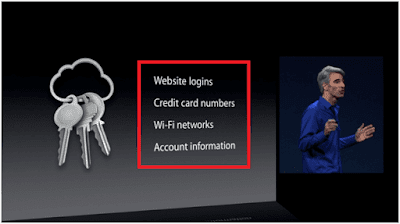
The iCloud Keychain is much like Heimdall from Thor, a gatekeeper of sorts. The iCloud Keychain works round the clock to save your usernames and passwords from your Safari web browser, saved pages, bookmarks, credit card data, Wi-Fi information and all other data stored by apple and you work with on your Apple products running the iOS7.0.3, its later versions, OS Maverick 10.9 and later versions – across all Apple platforms. It’s all synced. You saved a Katy Perry music video on your Macbook, it’ll show up on your iPhone browser.
Apple Password manager keychain

It’s a lot of information, isn’t it? You could be a Prime Minister on your way to office with sensitive information on your devices: iPhone, iPad and MacBook Pro, or a research associate, regardless, loss of data or unauthorized access to it could ruin your life. 

What Holds It All Together?

Of course, there’s a key and system at place to keep it intact. Your code simply is the 4 or 6 digit code you have set up to gain access to your device, i.e., all essential information about YOU on your Apple product.

You May Like to Read Apple iPhone X Review

If you had a wonderful conversation with a carpenter you found online on Messenger and saved his information only on that app, you’ll find if you use your iPad to access your email, Derek carpenter cheap will appear on all apps, saved, including Contacts, synced across all ios devices. Pretty handy, right?

How Does the Security Code Come Into Play?

keychain-password-manager

You can watch this video out there to show you how it holds everything together in your devices.

Let’s work with real life scenarios to understand this phenomenon without getting bogged down by technical jargon. We will learn how these two security measures work side by side, become valued as irreplaceable and cannot function entirely too well without the other.


Want To try alternatives of iCloud Keychain? Here is iCloud keychain alternatives


Okay, now your buddy from college recently got married and is looking to invite the in-laws for Thanksgiving. Only problem is that his house isn’t exactly what you would call pleasant. Mould, termite and the odd talks about asbestos are plaguing the marriage, so he thought a pleasant dinner with the family could bring him and his missus together. She’s no dummy, a dinner isn’t enough. A renovation is needed.

Now you’re at the office, your new iMac laid in front of you and on the left there’s a picture of your kid, wearing that ugly shoe, is framed and aimed right at your eyes, reminding you of the bathroom incident. Your landline rings and you pick up to answer your friend asking if you know any good carpenter for a reasonable budget. Of course, Derek is your guy but you had his information saved on your home computer and you left your iPhone at home. How do you find Derek?

The Need

Now this iMac was an additional device. What you need to add it to the list of already approved devices under the protection of your Keychain is to use the iCloud Security Code. This is a new device in your office. One code sets you apart and is unique to you. Once through, this opens up all the information linked by the chain.

This is what your code is all about. You need to enter your previously determined code into the iMac and voila! Your new office computer is now in sync and you now have access to other Keychain related activities including the matter at hand, finding Derek!

keychain-password-manager

This means Derek is now synced and can easily be found on all your social media accounts, including Myspace, yeah, that’s a bummer. You then share Derek’s contact details and hope he is to your friend’s liking otherwise you’ll get judged for having a poor taste in carpenters. I mean this after the shoe debacle is not good news. Nobody will think you’re fit - - for anything!


But be sure you don’t mistakenly type in the wrong code too many times otherwise your access to Keychain will be denied and you’ll need to set up again. I know Derek’s your buddy but let’s not get too excited.

How To Set Up The Keychain

Once you are done updating your iPhone, iPad, or iPod touch the latest iOS and you will notice that the setup assistant will ask you to set up iCloud Keychain. However, if you somehow jumped over this particular step and want to set up iCloud Keychain now, go through the steps written below:

For systems operating the iOS 10.3 and later versions:

  • Click Settings > [your name] > iCloud.
  • If you're using iOS 10.2 or earlier, click Settings > iCloud.
  • Click Keychain and slide to switch on iCloud Keychain.
  • Enter your Apple ID password.
  • Read the onscreen instructions and follow it.
how-to-setup-icloud-keychain

On your Mac with OS X Mavericks 10.9 and later:

  • Select Apple () menu > System Preferences, then tap iCloud.
  • Chose Keychain. If you wish to, you are allowed to place a passcode to unlock your screen after sleep or after the screen saver commences.
  • Enter your Apple ID and password.
  • And go through the onscreen instructions and follow it.
For a different way to learn, this could make this slightly interesting.


How to reset your iCloud Keychain

But if fail to access any device that has your iCloud Keychain, you have to go for a fully different process to reset icloud keychain. Let's have a look at that!

For i-phone, i-pad or i-touch:


  • At first tap settings.
  • Go to your profile(Your name)
  • Go to iCloud.
  • Turn the iCloud Keychain on.


But if you are an iOS 10.2 or earlier version user, you will have to go for below.

  • After tapping settings you will find iCloud. 


Then your device will require your ID password. There will be two-step verification. If you are using this, you don't need to worry. Using two-step verification you can reset the security code. But if you don’t use verification system, tap for forgetting the code. Then what to do? I have explained below-


  • Tap for reset keychain and replace your keychain from the device.
  • Tap reset again to confirm.
  • Now there will be steps that you have to follow to create a new iCloud code.


For Mac

If you are using Mac with OS X Yosemite, you should follow the below steps.


  • Select Apple menu.
  • Then go to system preferences.
  • Tap iCloud and then Keychain.
  • Here you will be asked to give your Apple ID password.
  • Then tap for user code.
  • Select forget the code and enter the iCloud security code.
  • Click reset keychain so that it can replace your keychain from the device.
  • Tap Reset to confirm.
  • Now set up the new security code by following the onscreen process. 

Don’t be hasty

What we’ve come to understand thus far is that it’s a doubled layered system. The code on one hand which grants one stage of access and then you’ve got the Boss level entry guarded by the Keychain. While all these systems of verification are running your identity through their servers, your information stored on devices and web platforms are all interconnected and synced and updated each time you make a change. It’s the kind of reassuring thing you’d like to keep at the back of your mind before going to sleep, especially so if you operate out of multiple devices.

Am I Still Doing It Right?

But we do have nightmares, don’t we? Think of the ways this almost air tight system that could very well beat 007 and fail you.

Easy:  sloppiness on your part. Apple can provide security for you as long as you are willing to take it all the way.
Have you made sure that you set up Keychain on all the devices you want to use? Yeah, do that. Once done, you’ll see it seamlessly update itself and be on sync with the other devices.

The beta thing would be to ignore the step to set up a Security Code and only set up the Keychain since it’s what’s holding the information.
However, loss of the chain would mean loss forever – unless you’ve got the code which ensures successful recovery of your digital existence which, in today’s world almost appropriately and sadly, is a huge portion of who we are. 

The alpha and non-dumb thing would be to have the code and chain both in place. Don’t risk it, apply this dual level security coverage just to be on the safe side. For those Googling other password management tools and apps, keep in mind, that your basics are met, at least, and these two discussed so far are advanced enough for the most of us. 
Fear Of The iCloud
A lot of us have heard of leaks and hacks of our iCloud information and are hesitant to leave our data and authentication information on it. There are ways to ensure your iCloud Keychain information remains ONLY on your device and other approved ones and NOT on Apple servers.
icloud-keychain-review

In this instant, however, you need to forego setting up the Security Code. (FYI: without it, there will be zero chances to recover your Keychain should you lose it, but I guess, there are still a few Thelma & Louises out there who feel they want to risk it).


For iPhone, iPad and iPod devices:

  • Find Settings
  • Click your name (as mentioned earlier, the name doesn’t appear for users of iOS 10.2 and its past versions)
  • Click iCloud
  • Click Keychain 
  • Fill in ID and Password
  • You’ll be asked to set up the Security Code, because Apple cares, but you can go all Mad Max on it and hit Create Different Code
  • Find and click Advanced Options to choose either: A Random Security Code, or, Don’t Create Security Code
  • Follow the directions to set up the Keychain, which you should now be familiar with

For Mac:
  • Like before, find Menu
  • Click System Preferences
  • Find iCloud 
  • Click Keychain
  • Fill in your ID and Password
  • Find and click Advanced Options to choose either: A Random Security Code, or, Don’t Create Security Code.
If you’re still paranoid and want to make any and all previously stored information on their servers might be at risk and requires removal, then use the Advanced Options tab to turn off Security Code and Keychain off of each approved device. That way all its information remain solely on your hands and not THEIR’S.

Perhaps watching this can make it clearer.

In the event you’re locked out, Apple offers simple step-by-step instructions, on their support pages regarding successful authentication, further set up and approval of devices, to regain control of your life since it all seems to be at a standstill until all’s okay with your iPhone so freaking Derek can call to show you his kitchen table designs for your friend while your kid chews on that shoe. Dammit, Derek! 


The average John and Jane out there don’t have the time nor interest in going full research mode on their devices. They take too much time off our hands anyway. People don’t joke around when they mean it’s like an added limb to our body. People talk about phantom vibrations and sometimes being able to tell if they’ve got notifications on their screen without looking. This, almost voodoo telepathy we seem to have, a ridiculous bond with our devices, sometimes getting more of our time than the humans around us, is getting to a point where we have to draw a line. Yet, that doesn’t mean choosing ignorance. Vigilance is required to make sure your devices are messed with or messed up.